As an Amazon Associate, we earn from qualifying purchases. Some links on this site are affiliate links at no extra cost to you. Our recommendations are based on thorough research and editorial judgment.


Fixing Latency Issues When Recording With USB Microphones

Fixing latency when recording with USB microphones can be tricky, but it’s doable! First, lower the buffer size in your software to around 64 or 128 samples for recording. This reduces delay but be careful not to overload your computer. Using direct monitoring is super helpful too, as it lets you hear your input in real-time without a lag. And don’t forget to update your audio drivers to keep things running smoothly. Stick around for more tips and tricks!
Key Takeaways
- Lower the buffer size in your recording software settings to minimize latency during USB microphone use.
- Enable direct monitoring to hear audio input in real-time with zero latency.
- Ensure your computer’s CPU and RAM meet the demands of audio processing for better performance.
- Regularly update your audio drivers to reduce latency and compatibility issues.
- Close unnecessary applications while recording to allocate more resources to your audio software.
Getting Started
When starting to work with USB microphones, it’s essential to grasp the basics to avoid potential headaches down the road. Latency can be a pesky issue, often caused by the time it takes for digital conversion. For every 1.1 feet sound travels, expect about 1 ms of delay—yikes! To tackle this, use a fast computer and shut down unnecessary programs for better audio processing. Adjusting buffer sizes in your recording software can also help; longer buffers offer more processing time, while shorter ones might crank up errors. Want instant feedback? Look for USB microphones with a headphone jack for direct monitoring. Finally, using ASIO-supported software, like Twisted Wave or GarageBand, can greatly cut down that annoying latency. Happy recording! Many modern USB-C microphones offer high-fidelity recording capabilities with sampling rates up to 192kHz for superior sound quality.
What Is Latency?
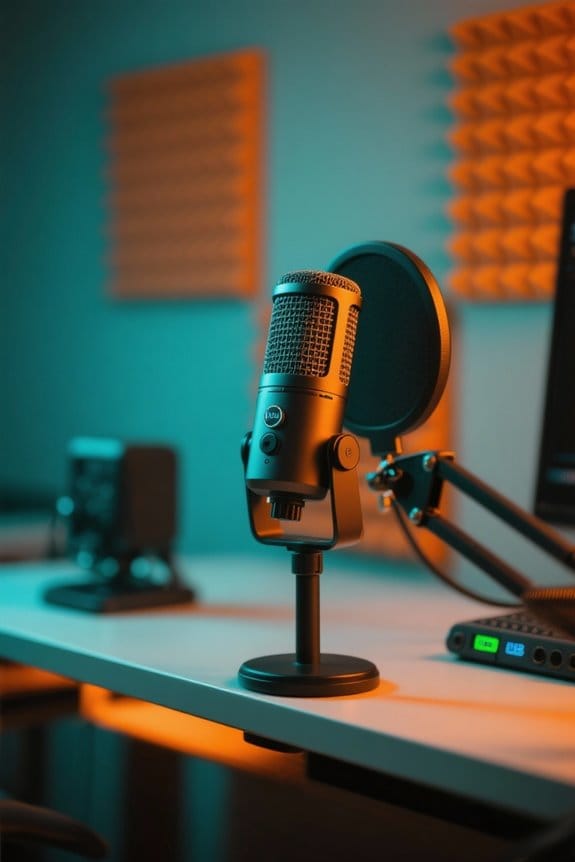
Latency is the annoying delay that can mess with audio experience. Specifically, it refers to the time gap between audio or MIDI input and playback output, usually measured in milliseconds. This delay occurs due to several stages of processing, like analog-to-digital conversion and digital signal processing. For musicians, latency when recording can be a major headache. Factors contributing to audio latency include audio drivers, buffer size, and computer specs. Higher buffer sizes often translate to more latency, while lower sizes make reducing latency possible but can lead to audio hiccups. With USB microphones, these delays can become painfully obvious during recording. So, keeping your eye on buffer settings could save your session from a frustrating fate! Professional tools like SOUND FORGE Audio Studio offer advanced EQ and reverb features to help manage latency issues while maintaining sound quality.
Common Causes of Latency

Identifying the common causes of latency can help prevent frustrating audio delays in your recordings. USB microphones experience latency due to processing delays during analog-to-digital and digital-to-analog conversions. Surprisingly, for every 1.1 feet sound waves travel, expect a 1 ms delay. Other culprits include your computer’s speed, the recording software in use, and those tempting buffer size settings. Outdated or incompatible audio drivers can worsen latency, so keep them updated. If you’re working wirelessly, network interference may sneak in and add delays as well. Finally, high plugin counts and virtual instruments can slow things down. Each extra component brings its own processing time, leading to audio that might trail your voice—definitely not the aim! Modern wireless microphones like the SYNCO D2 wireless achieve ultra-low latency of just 0.012 seconds, making them ideal for delay-sensitive recording situations.
Recommended Products

Outstanding 4K Visuals, Mapped Perfectly to Your Space: X1 Pro's Triple Laser engine delivers 3,500 ANSI lumens, 1.07 billion colors, and 56,000:1 dynamic contrast; SpaceFlow auto-maps your wall's exact 3D shape and texture — fitted precisely to any surface for a truly cinematic image.

16.0" OLED WQXGA (2560x1600) 240Hz Display; 802.11be, Bluetooth 5.4, Webcam, RGB KB Standard Keyboard
How to Fix Latency Issues
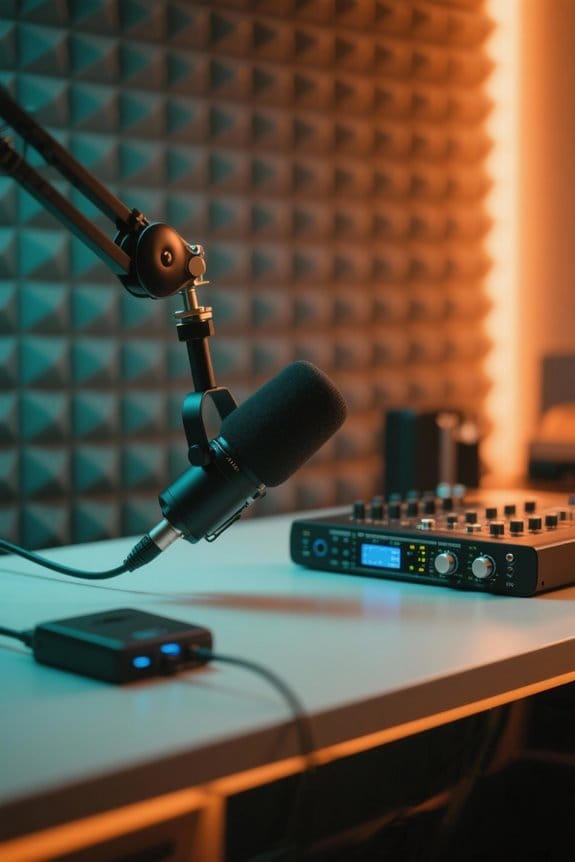
Fixing latency issues with USB microphones isn’t just a technical challenge; it’s an essential step for any budding audio enthusiast. First, consider lowering the buffer size in your recording software settings. A smaller buffer can greatly reduce latency during tracking. If your microphone has it, utilize direct monitoring features to hear your input without any delay—like having your cake and eating it too! Also, make sure your computer’s CPU and RAM can handle audio processing; lacking resources can lead to frustrating delays. Regularly update your audio drivers and explore ASIO support for better latency management. Finally, don’t forget to disable unnecessary applications during recording. Freed-up resources can seriously enhance audio processing efficiency, making your life a lot easier! For optimal results, consider using high sound quality software that supports professional audio standards and multiple export formats.
Recommended Products

For Recording Studios and Touring

Dominate Games & Crush Productivity: Powered by AMD Ryzen 9 8940HX processor(16-core, 32-thread, Up to 5.3 GHz), ASUS ROG Strix G16 delivers beastly performance for both hardcore gaming and demanding creative work. Whether you're pushing high frame rates in the latest AAA titles or rendering 4K video, this gaming laptop handles it all with ease. You'll experience ultra-low latency and smooth online gaming without lag. It's a true desktop level gaming laptop for gamers, streamers, and video editors alike

Real-Time Collaboration: Ditch passive presentations. This smart board lets teams write, annotate, and brainstorm together in real time on a stunning 4K touchscreen. True multi-user touch turns long discussions into clear, actionable decisions, right in the room
Setting Buffer Size and Sample Rate in Your DAW

Adjusting the buffer size and sample rate in a Digital Audio Workstation (DAW) is key for achieving the best sound quality while using a USB microphone. The buffer size directly impacts latency; smaller sizes, typically between 64 and 128 samples, can reduce delay during recording but might overload your computer if set too low. For mixing, you might need to increase this to between 512 and 2048 samples.
Sample rate also plays a critical role, with common rates like 44.1 kHz or 48 kHz affecting how quickly audio is recorded and played back. To calculate latency, divide the buffer size by the sample rate, then multiply by 1000. Finding that sweet spot makes recording a breeze! Zero-latency monitoring capabilities in modern audio interfaces can help eliminate these timing issues during recording sessions.
Recommended Products

Accompaniment Styles add a "backing band" when you play or perform for dynamic and professional results. Customize and personalize your music while maintaining control over chord changes and arrangements.

[ All-in-One Smart Podium] This smart digital podium combines a 23.6-inch touchscreen display, OPS computer, Two wired gooseneck microphone, and motorized height adjustment into one integrated unit, making it the perfect solution for modern conferences, lectures, and public speaking events. Designed for professional use, it delivers seamless functionality for engaging and dynamic presentations.

Flagship 88-note weighted-action synthesizer keyboard with thousands of electronic and acoustic sounds powered by Roland’s advanced ZEN-Core, V-Piano and SuperNATURAL technologies, with authentic acoustic grand sound and response
Direct Monitoring Solutions
Clarity in sound provides an essential edge when recording, and direct monitoring is one of the best ways to achieve that. With direct monitoring, users listen to their audio input in real-time, without latency. This means no annoying delays—a true zero latency experience. Many USB microphones, like the Audio-Technica AT2020USB+, come equipped with a headphone jack for effortless direct monitoring. To get effective results, route your software’s output to the mic’s headphone jack and mute the vocal track to avoid feedback. This simple setup boosts recording accuracy and efficiency, especially for those who might struggle with DAW-related latency issues. Trust me, your ears will thank you when you get that instant feedback while you nail your performance! The signal-to-noise ratio should be at least 70dB to ensure crystal-clear monitoring through your headphones.
Recommended Products

Premium Comfort: Weighing just 14.9 ounces, this noise canceling aviation headset has a low-profile and tapered performance ear seals designed to hug the curve of the jaw for a natural fit providing a better (and more comfortable) seal around eyeglass or sunglass frames.

【𝐓𝐞𝐧𝐯𝐞𝐨 𝐌𝐮𝐥𝐭𝐢-𝐅𝐮𝐧𝐜𝐭𝐢𝐨𝐧 𝐕𝐢𝐝𝐞𝐨 𝐌𝐢𝐱𝐞𝐫 𝐒𝐰𝐢𝐭𝐜𝐡𝐞𝐫】Tenveo PC500 - a professional live streaming Video Mixer Switcher, Integrates video encoding, multi-channel switching, PTZ/NDI Camera control, multi-camera Live streaming, real-time monitoring and USB recording. Designed and produced for professional Audio Video System Live Streaming /Live Production /Live Broadcasting. Suitable for Church Worship Live Services, Studio Live, Stage Shows, Product Launch, Sport Events, Government Activities, Online Training, University, Factory live, Classroom, High end Summit, Large Conference, Weddings, Podcasts, etc.

【WIRELESS PERFORMANCE】UHF band phase-locked PLL, in the 560-590Mhz band, preset 60 frequencies can be switched at will. UHF transmission with a range of 80 meters and up to 300 meters in open environments. Simultaneously improves the signal-to-noise ratio in the dynamic range, gives the system optimum immunity to interference and ensures perfect acoustic sound.
Testing and Troubleshooting Your Setup
When using a USB microphone, gear attention often shifts to performance and sound quality, but troubleshooting any hiccups is just as important. Start by testing the microphone on a different computer. This helps determine if the latency issue is with your original setup or the hardware itself. If problems persist, use the Windows Troubleshooter; it’s just a few clicks away in Settings. Next, adjust your recording software’s buffer size; lower settings can help reduce latency during tracking, though they may demand more from your system. Also, check for interference from nearby wireless devices—moving things around might work wonders. Finally, verify real-time playback feedback is enabled. A little testing and adjustment can lead to seamless recording bliss! Consider implementing AI noise cancellation technology to significantly reduce background interference and enhance overall recording clarity.
Recommended Products

POWERFUL PERFORMANCE — Experience seamless gaming and productivity with the HP OMEN 16, featuring advanced OMEN Tempest Cooling Technology to ensure no frequency reduction under long-term high load. OMEN AI intelligently monitors hardware metrics, dynamically allocating resources to boost frame rates automatically without manual setup. Combined with fast charging and long battery life, this laptop is perfect for gamers and professionals who need reliability on the go

3-way powered loudspeaker with a 2” HF, an 8 ” MF and a 15" LF
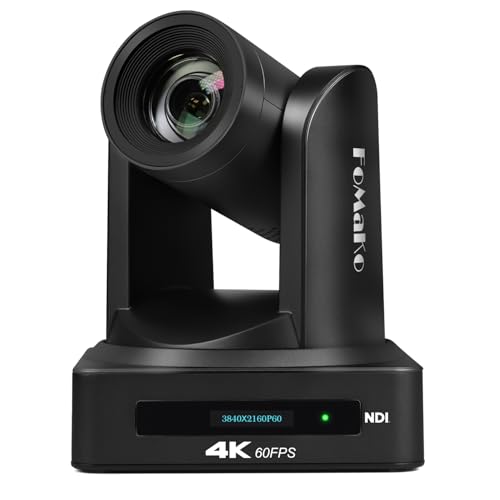
【 FoMaKo 4K 60FPS NDI PTZ Camera, Support NDI HX3 4K 60fps Video output 】.20x Optical zoom. 3-Channels 4K video output, HDMI/LAN support 4K at 60fps,USB Support 4KP30, and 3G-SDI /NDI support 1080P at 60fps. Uncompressed Ultra High Definition Video, PoE supported. Made for Church Worship Live Services Live studio, Events. ( K800N: NDI License Included.)
Frequently Asked Questions
How to Reduce USB Mic Latency?
To reduce USB mic latency, one can adjust buffer size in recording software, utilize an audio interface for better performance, and enable appropriate monitoring options to streamline audio processing and enhance recording efficiency.
How to Get Rid of Latency While Recording?
Like a conductor leading a symphony, one can eliminate latency in recording by embracing audio interface benefits, optimizing digital audio processing, and applying savvy recording software tips to create harmonious, seamless soundscapes in their musical endeavors.
What Is the Downside of a USB Mic?
The downside of a USB mic includes potential latency issues that hinder real-time monitoring. Despite advantages like sound quality and setup convenience, users often face difficulties in precise audio production, affecting overall recording effectiveness.
How to Calibrate a USB Microphone?
“Measure twice, cut once.” To calibrate a USB microphone, confirm proper mic placement, adjust interface settings in the sound control panel, check audio drivers for updates, and monitor input levels in digital audio workstations.